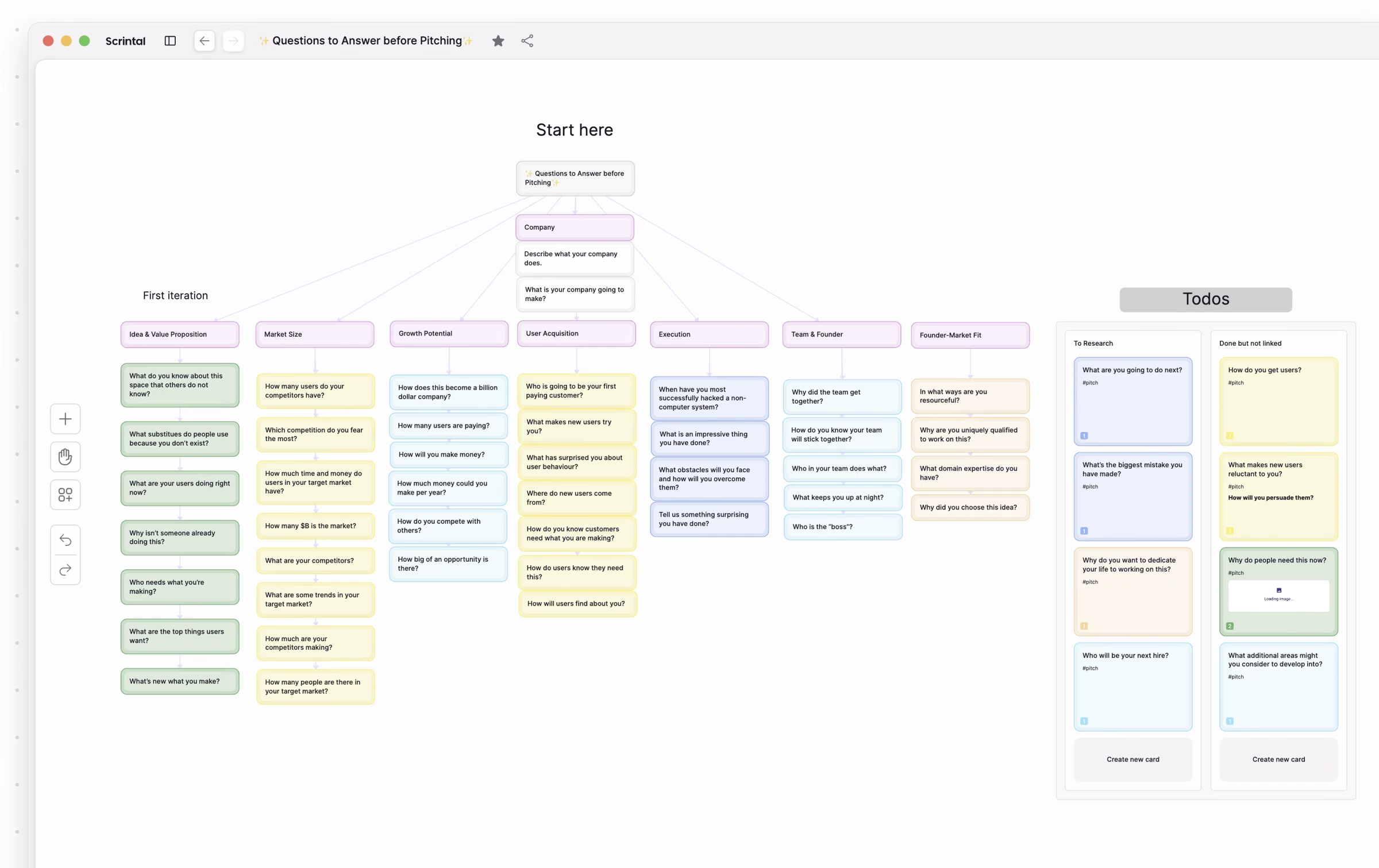
A visual note-taking app lets you capture ideas as cards on a canvas, place them where they make sense, and connect them with links you can actually see. Instead of scrolling through pages of text, you get one view of how everything fits together.
If you think in images, networks and connections, linear notes can feel limiting. This guide explains how visual note-taking works, what to look for in an app, and how Scrintal approaches it.
What is a visual note-taking app?
A visual note-taking app combines two things that usually live in separate tools:
Notes: text you can write, search, edit and keep, from a single keyword to a long document.
A visual space: a canvas where you can arrange those notes, group them, and draw connections between them.
A whiteboard gives you the space but forgets your notes once a board is gone. A document app keeps your notes but hides how they relate. A good visual note-taking app does both: everything looks visual, but stays searchable and permanent.
How visual note-taking works
Visual note-taking follows a simple loop. You can start anywhere and come back to any step.
Capture freely. Put every idea on the canvas as it comes. Don't worry about the final structure yet; the point is to get thoughts out of your head and in front of you.
Arrange spatially. Move related cards close together, put them in columns, or build a hierarchy from top to bottom. Position itself carries meaning: what sits together belongs together.
Connect ideas. Draw links between cards to show cause and effect, sources and claims, or steps in a process. The connections are often where the real insight is.
Zoom in and out. Step back to see the whole picture, then zoom in on the detail you're working on. Nesting boards lets a big topic hold smaller ones without getting cluttered.
Reuse and review. Bring old notes back into new projects. When notes are permanent and linked, reviewing them later feels like exploring rather than searching.
Want to go deeper into the methods themselves? Read our guide to visual note-taking for students and professionals or explore different note-taking strategies.
What to look for in a visual note-taking app
Not every canvas tool is a note-taking tool. These are the things that make the difference over months and years of use:
An infinite canvas: room to brainstorm without running out of space.
Notes that last: cards that live in an archive, not only on one board, so removing them from a canvas never deletes your work.
Two-way links: links that show up on both ends, so you can see what a note connects to and what connects back to it.
Structure when you need it: boards inside boards, columns, colors and layouts.
Search across everything: visual doesn't have to mean hard to find.
Room for sources: PDFs, images, videos and web links next to your own thinking.
Easy start, easy exit: a short learning curve, imports from your current tool, and full export so your data stays yours.
Sharing: a way to work on the same canvas with others or show your thinking to people outside the app.
How Scrintal does visual note-taking
Scrintal was built around the canvas. Here's how each part of the loop above works in it.
Cards: fun as post-it notes, permanent as docs
Cards are the building blocks in Scrintal. They can hold short or long-form content, and you can change their color and layout, fold them like a post-it note, or open them full screen to focus. Every card lives in your archive, and you can reuse the same card across different boards with a different look on each one.
An infinite canvas and nested boards
The infinite canvas lets you jot down all your ideas and see every part of a project at a glance. Add columns and free text to give it structure, and nest boards inside boards to go as deep as you need.
Links you draw, or type
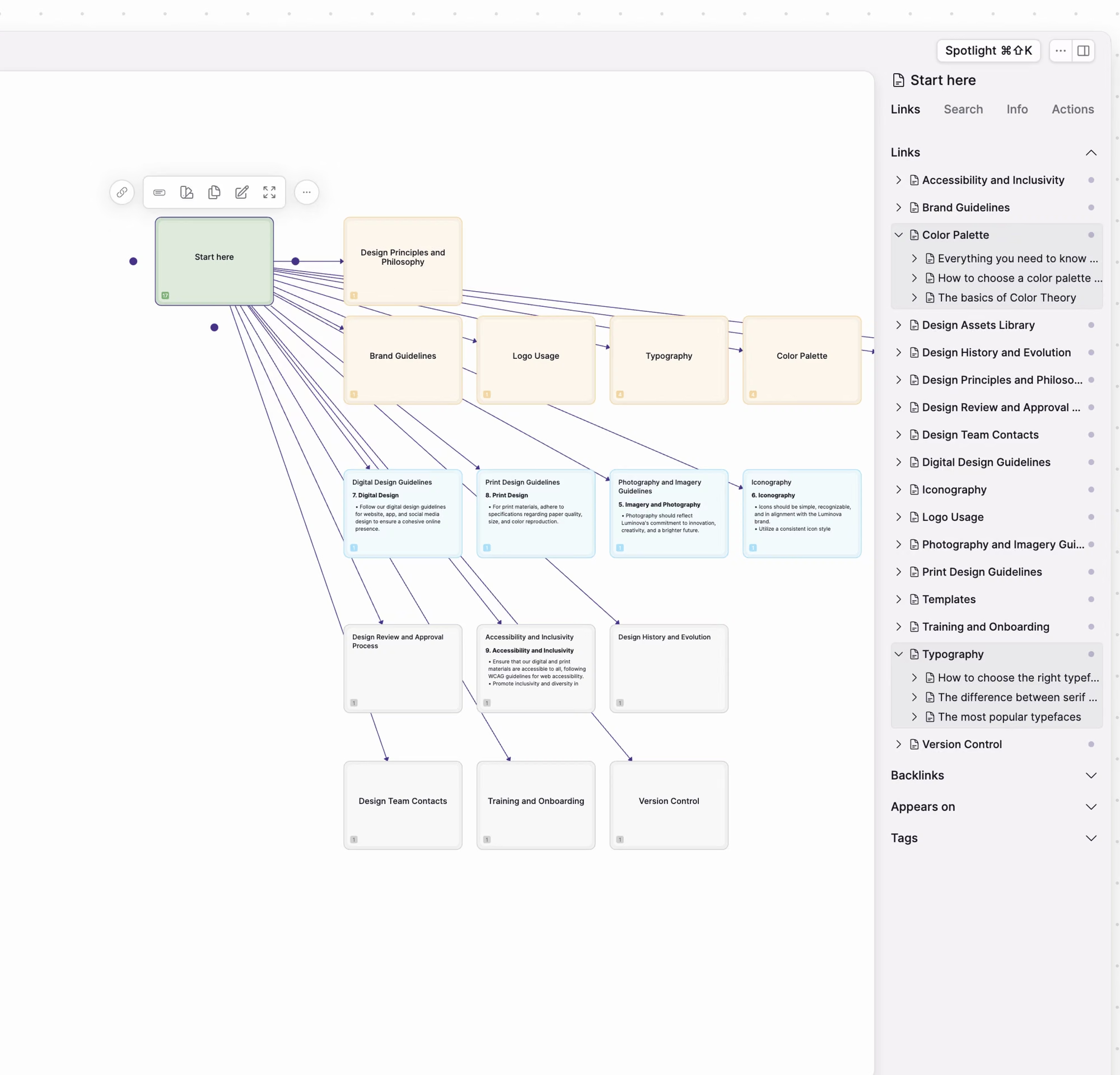
In Scrintal, linking is as easy as drawing an arrow. Whether you draw a link on the canvas or type it in the text editor, Scrintal treats it as a two-way link and shows both links and backlinks. You can link boards and web links too, not just cards. And if you remove a card from a board, its links stay.
A knowledge graph you can shape
Your links add up to a knowledge graph. Arrange it by hand, or use the Organize feature to let the built-in graph algorithm center your most-linked element. You can also make as many boards as you like with the same information, each with its own layout.
One single archive
Everything you create is kept in one archive. Spotlight finds any card or board from anywhere in the app, the right sidebar searches what's on the canvas, and browse pages let you filter cards, boards, tags and web links and change many at once.
Sources on the canvas
Embed PDFs, videos and images, or upload any file to a card. Double-click an embed to see it right on the canvas, next to the notes it inspired.
Share, collaborate and publish
Share single cards or whole boards and work together in real time, following each team member on the canvas. You can also publish boards with a URL for anyone to see.
Easy to start, easy to leave
You can import your whole Markdown archive, including its two-way links and tags, and export everything whenever you want. Your data is your data.
Who uses a visual note-taking app?
Students connecting lecture notes, readings and essay ideas. See our tips on essay writing with better notes.
Researchers mapping sources and findings for a literature review. See Scrintal for research.
Writers and creators taking content from first idea to finished piece.
Knowledge workers building a personal knowledge base or a digital Zettelkasten.
Teams planning projects together on a shared canvas.
Getting started
The best way to find out whether visual note-taking works for you is to try it on something real: your next project, paper or idea.
Create a board for one topic.
Add a card for every idea, source or question.
Group related cards and draw links between them.
Step back and look at what the connections tell you.
Scrintal has a zero learning curve, so you can be productive five minutes from now. See Scrintal's plans or explore all features.